

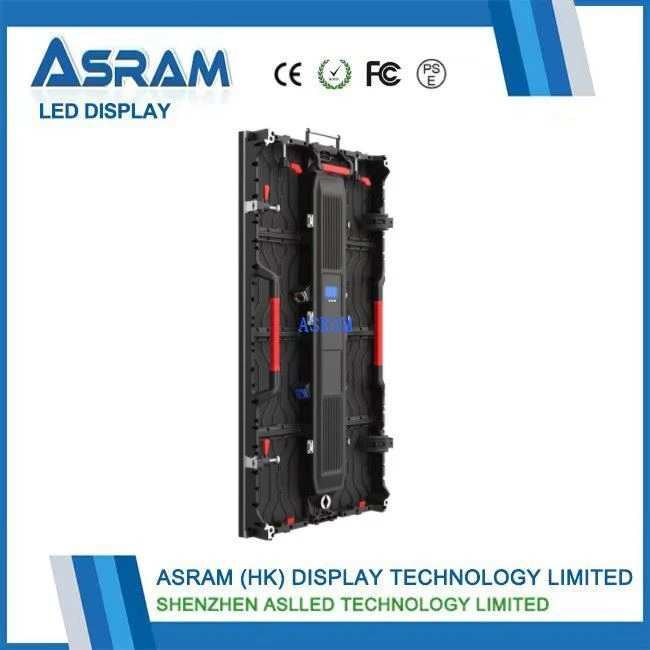
Hey there! As a supplier of video TV LED displays, I've gotten tons of questions about how to adjust the sharpness of these displays. It's a pretty common concern among users, whether they're using our Outdoor Stage LED Screen P3.91 HD LED Display 500X1000mm Size for a big event or the LEDP3.91 Outdoor 500X500RGB High-definition Video Wall Advertisement for advertising. So, I'm gonna share some tips on how to get that crisp, clear picture you're looking for.
First off, let's understand why sharpness matters. A sharp display can make a huge difference in how you perceive the content. Whether it's watching a movie, playing a game, or presenting information at a business event, a sharp image brings the visuals to life. Blurry or pixelated images can be a real buzzkill, and that's something we definitely don't want for our customers.
Checking the Source
The first step in adjusting the sharpness of your LED display is to check the source of the video. Sometimes, the problem isn't with the display itself but with the quality of the video signal being sent to it. If you're using a streaming service, make sure it's set to the highest quality available. Most streaming platforms offer different quality settings, like 720p, 1080p, or even 4K. Higher resolutions generally mean sharper images.
If you're using a cable or satellite TV box, check the output resolution. Some devices may default to a lower resolution to save bandwidth, but you can usually change this in the settings. Just make sure your LED display supports the resolution you're setting. You don't want to set it too high and end up with a distorted or unreadable image.
Adjusting the Display Settings
Once you've ensured that the source is providing a high-quality signal, it's time to look at the display settings. Most LED displays come with a built-in menu system that allows you to adjust various picture settings, including sharpness. Here's how you can do it:
- Locate the Menu Button: This is usually on the side or back of the display itself or on the remote control. Press it to access the menu.
- Find the Picture Settings: Look for an option like "Picture," "Image," or "Display" in the menu. Select it.
- Adjust the Sharpness: Within the picture settings, you should see a "Sharpness" option. Use the arrow keys on your remote to increase or decrease the sharpness level. Start with a moderate setting and then make small adjustments until you're happy with the result.
It's important not to overdo it with the sharpness. Too much sharpness can make the image look artificial and create halos or artifacts around objects. You want to find the sweet spot where the image looks clear and natural.
Calibrating the Display
For a more precise adjustment, you can use calibration tools. There are several calibration programs available online that can help you optimize your display settings. These programs usually come with test patterns and instructions on how to adjust the contrast, brightness, color, and sharpness for the best possible picture quality.

If you're not comfortable using calibration software, you can also hire a professional calibrator. They have the tools and expertise to calibrate your LED display to its optimal settings. While this may cost some money, it can be worth it if you want the best possible picture quality.
Considering the Environment
The environment in which you're using the LED display can also affect its perceived sharpness. For example, if the display is in a brightly lit room, the image may appear less sharp due to glare. In this case, you can try adjusting the brightness and contrast settings to compensate for the ambient light. You may also want to consider using anti-glare film on the display to reduce reflections.
On the other hand, if the room is too dark, the image may look washed out or lack detail. In this situation, you can increase the brightness and contrast slightly to make the image more visible.
Updating the Firmware
Sometimes, the manufacturer may release firmware updates for the LED display. These updates can fix bugs, improve performance, and even enhance the picture quality. Check the manufacturer's website regularly for firmware updates and follow the instructions on how to install them. Updating the firmware can sometimes solve issues with image sharpness that you may be experiencing.
Conclusion
Adjusting the sharpness of a video TV LED display isn't rocket science. By following these simple steps, you can get a sharp, clear image that enhances your viewing experience. Whether you're using our Outdoor Stage LED Screen P3.91 HD LED Display 500X1000mm Size, LEDP3.91 Outdoor 500X500RGB High-definition Video Wall Advertisement, or any of our other products, we're here to help you get the most out of your display.
If you have any questions or need further assistance with adjusting the sharpness of your LED display, don't hesitate to reach out. We're always happy to help our customers. And if you're in the market for a new LED display, be sure to check out our Outdoor Rental Stage Background Party Led Display and other great products. Contact us today to discuss your specific needs and let's start a procurement conversation!
References
- General knowledge and experience as a video TV LED display supplier.
- Insights from industry-standard LED display manuals.